How to Use a QR Code to Sell More at Your Business
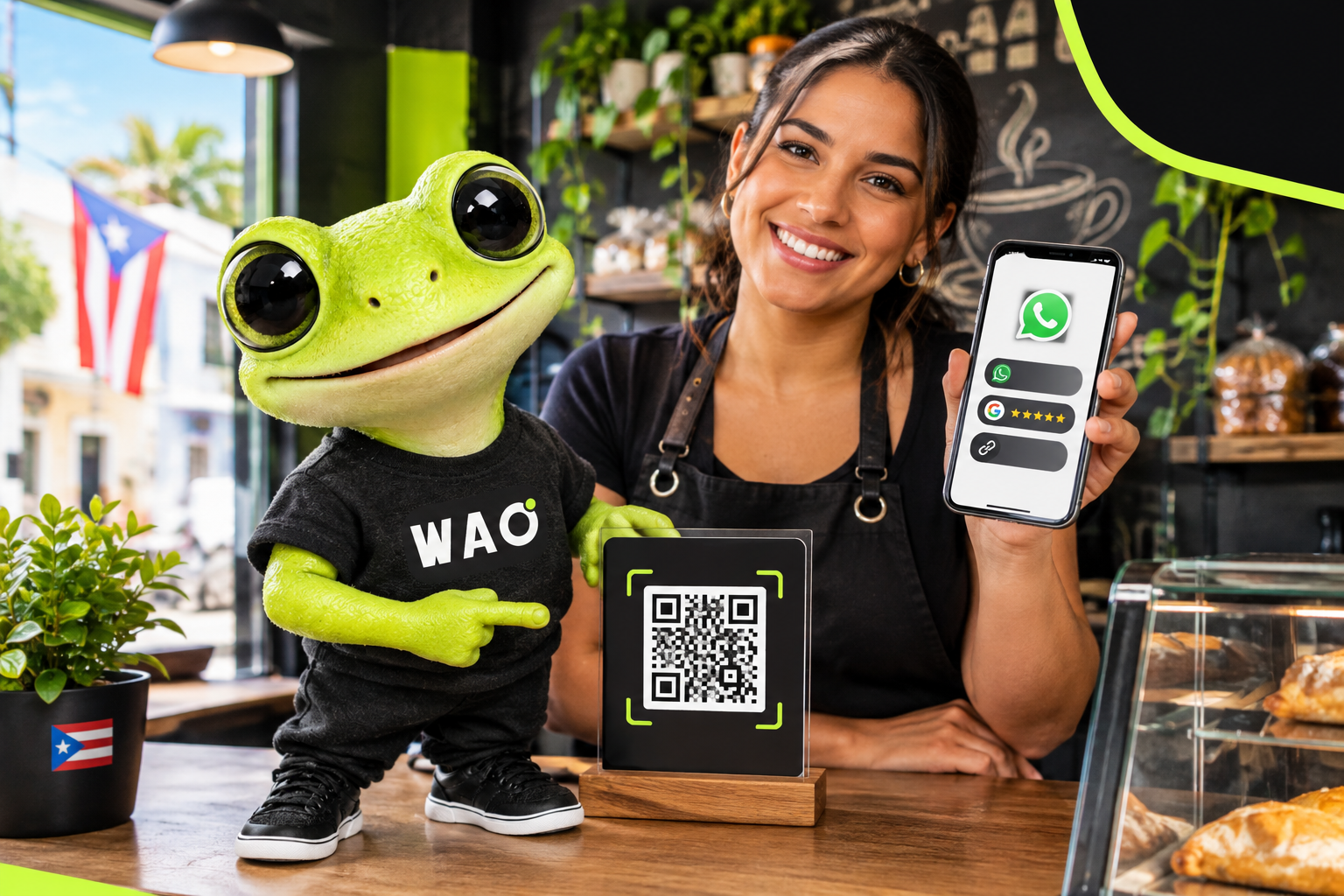
Your customer is standing right in front of you and you say: «Find me on Instagram… or let me give you my number… wait, let me write down the address.» That's where sales slip away. A QR Code fixes it: the customer points their phone, scans, and lands exactly where you want them. Here's how to use one, step by step, to bring in more customers, appointments and sales without making things complicated.
What is a QR Code and why does it help your business?
A QR Code is that little square of dots customers scan with their phone camera. No app to download, no long web address to type. They scan, and whatever you picked opens up.
For a small business, the real value is that it removes steps for the customer. Between «I'm interested» and «I'll message them» or «I'll buy» there's less road to travel. The shorter the road, the more likely they are to do it.
It's not magic and it doesn't guarantee sales. It's a clearly marked open door. What happens next depends on what's on the other side.
Step 1: Where do you want to send your customer?
Before you print anything, answer this: what do you want people to do after they scan? Pick one main action. Some options:
- Message you on WhatsApp to ask for a quote or book an appointment.
- Leave a review after you took good care of them.
- See your services, hours and location.
- Follow you on social media.
- Pay or order online.
If you cram everything in without order, people get lost. If you have several things to offer, the easiest fix is to put them all in one organized place, like a digital profile with your WhatsApp, social links and reviews. That way one QR Code does it all.
Step 2: Where should you put the QR Code?
A QR Code nobody sees won't sell anything. Think about your customer's path and put it where they're already looking or waiting:
- The counter or register. Perfect for asking for a review or sharing your contact.
- The window or door. Helps people passing by when you're closed and want your hours or a way to message you.
- Tables. For menus, orders or reviews.
- Your car, truck or sign. Lots of people see you on the street and never write anything down.
- Cards, flyers and packaging. Give every piece of paper a way back to you.
- Receipts. A good spot to invite a review.
Simple rule: eye level, good lighting, and nothing covering the code.
Step 3: How do you tell customers why to scan it?
Many people see a QR Code and don't know what's in it for them. Add one short line that says what they get. For example:
- «Scan and message us on WhatsApp.»
- «Book your appointment here.»
- «Liked the service? Tell us with a review.»
- «See all our services.»
Talk about what the customer gets, not the technology. «Scan here» says little. «Scan and book your appointment» says a lot.
If you serve people in person, say it out loud too: «Here's my QR Code, scan it and message me.» A friendly nudge makes a difference.
Step 4: What should be on the other side?
This is where many people slip. The QR Code is the door; what it opens has to deliver. Check this from your own phone:
- Does it load fast and look good on a phone?
- Can someone tell in five seconds what you do and how to reach you?
- Do the WhatsApp and call buttons really work?
- Are your hours and location up to date?
If you don't have a place to send people yet, that's job number one. A website gives you a home of your own online with your services, contact info and story. At WAO, websites start from $199 + $29/month (Básica plan). And if you want to sell or get paid, you can add online payments so customers don't have to wait for you to be free to pay.
Step 5: How do you know it's working?
You don't need spreadsheets. Ask yourself every so often:
- Am I getting more messages, appointments or reviews than before?
- Are customers telling me «I saw your QR Code»?
- Which spot gets the most attention?
Ask people directly: «How did you find me?» That tells you if the counter code beats the window one. If one isn't working, move it or change the line next to it. Small tests, quick tweaks.
What mistakes should you avoid?
The most common slip-ups:
- Printing it too small. If people have to lean in, they won't scan.
- Putting it where there's no signal. Think basements or closed-in spaces.
- Sending people to a page that isn't ready. They scan, see something broken, and leave.
- Giving no instruction. Without a line, many won't even try.
- Using a different code for everything. It gets more confusing than helpful.
- Forgetting to test it. Before printing a hundred copies, scan it yourself on two or three different phones.
Where do you start today?
Three moves:
- Choose the action that matters most: WhatsApp, appointments, reviews or payments.
- Get the destination ready, whether it's a digital profile or a website.
- Print your QR Code with a clear line and put it on your counter.
If you want help putting it all in one place, see how the WAO digital profile works. It's a simple way for customers to get your WhatsApp, social links and reviews with a single scan.
Frequently asked questions
Does a QR Code work for a small business?
Yes. It helps any business where customers see you in person or see your printed material: shops, salons, garages, food trucks, clinics and more.
Do customers need to download an app?
No. On most phones, they just open the camera and point it at the QR Code.
Can I use one QR Code for everything?
Yes, if it sends people to a place where all your options live, like a digital profile with your WhatsApp, social links and reviews.
Where is the best place to put it?
Where customers are already looking or waiting: counter, register, window, tables, packaging and cards.
Will a QR Code guarantee more sales?
No. It makes it easier for customers to contact or buy from you, but results depend on what you offer and how good the page behind it is.